
How to type German umlauts Ä, Ö, Ü on Windows, Mac, iPhone and Android — every method that works, plus the AE/OE/UE fallback rules for when the dots aren’t available.
You’ve learned how to pronounce Ä, Ö, Ü — now you need to write them. And here’s the frustrating part: on a standard English keyboard, the umlaut keys simply don’t exist. This guide on how to type German umlauts covers every practical method for Windows, Mac, iPhone, iPad and Android, from the 30-second quick fixes to the permanent setups that make typing German feel natural. It also covers the official fallback spellings — AE, OE, UE — because there are real situations (Swiss keyboards, web forms, crosswords) where the dots aren’t an option and you need to know the rules.
One thing before we start: there is no single “best” method, only the best method for how you use German. Typing the occasional “schön” in a chat message needs a different solution than writing essays in German daily. Each section below ends with a verdict on who that method suits, so skip to your device — or read the whole thing and pick your setup deliberately.
How to Type German Umlauts on Windows: 4 Methods
Method 1: The US International keyboard layout (best for regular German typing). This is the method most serious learners end up with. Go to Settings → Time & Language → Language & Region, and under your language’s options add the “United States-International” keyboard. Switch to it with Win + Space. Now the quote key becomes a “dead key”: type ” then a, and you get ä. ” then o gives ö, ” then u gives ü. For capitals, ” then Shift+A gives Ä. The ß (Eszett) is Right-Alt + s. The trade-off: the quote key no longer types a quote on its own — you press ” then Space for a literal quotation mark. It takes a day to adjust, and then typing German becomes as fast as typing English. Verdict: the best permanent setup for anyone who writes German more than a few times a week.
Method 2: Add the actual German keyboard layout. In the same Language settings, add “Deutsch” as a keyboard. Now ä, ö, ü and ß have their own dedicated keys (right of P, L and the hyphen row), exactly as on a German physical keyboard. The catch: Y and Z swap positions, and most punctuation moves — typing English on this layout is genuinely disorienting. Verdict: ideal if you learned to type on a German keyboard or spend most of your time in German; otherwise the US International layout is less disruptive.
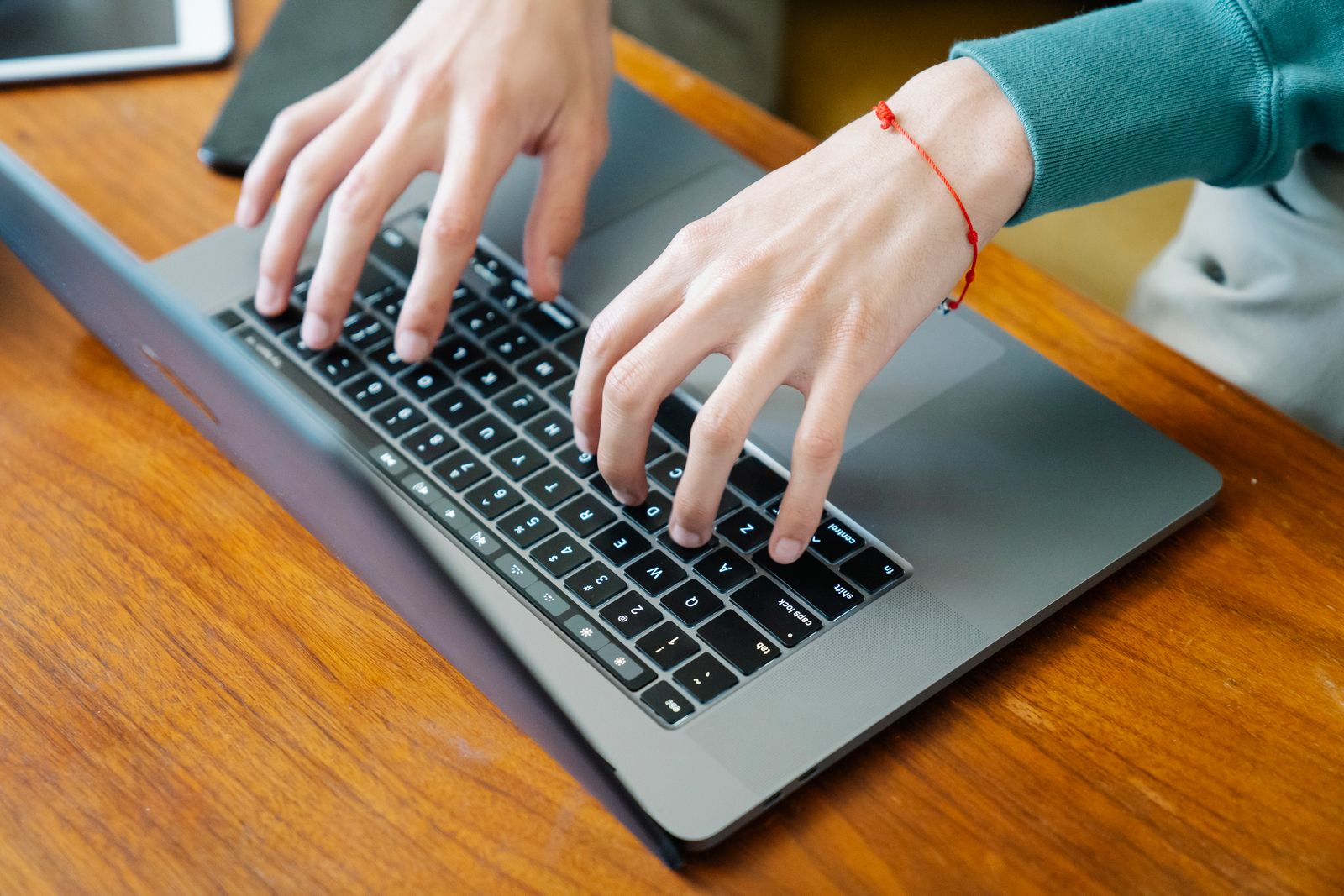
Method 3: Alt codes (best for occasional umlauts). Hold Alt and type a number on the numeric keypad: Alt+0228 = ä, Alt+0246 = ö, Alt+0252 = ü, Alt+0196 = Ä, Alt+0214 = Ö, Alt+0220 = Ü, Alt+0223 = ß. This works in almost every Windows program with zero setup. The catch: it requires a numeric keypad, so most laptops can’t do it without an external numpad or the on-screen keyboard. Verdict: perfect for the occasional umlaut on a desktop; impractical as a daily method.
Method 4: The character map and Win + . picker. Press Win + . (period) to open the emoji/symbol picker, switch to the symbols tab, and browse to the Latin section — ä, ö, ü and ß are all there for clicking. Or open Character Map (charmap.exe) for the full set. Verdict: slow but foolproof; good for one-off needs when you can’t remember any other method.
How to Type German Umlauts on Mac: 3 Methods
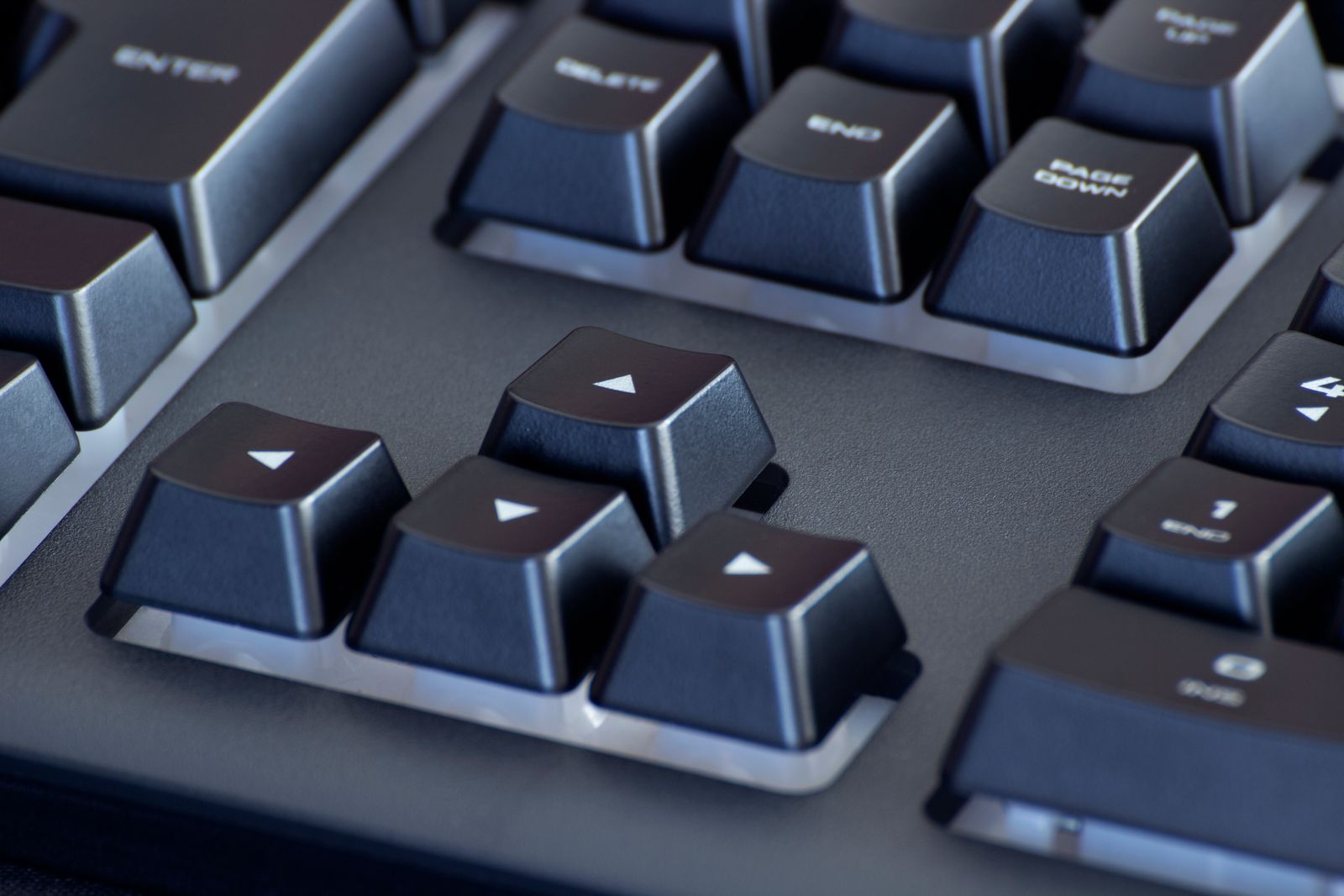
Method 1: The Option-key shortcuts (fastest, no setup). macOS has umlaut shortcuts built in, and they’re beautifully consistent. Press Option + u, release, then type the vowel: Option+u followed by a gives ä, by o gives ö, by u gives ü. For capitals, Option+u followed by Shift+A gives Ä (and Shift+O, Shift+U for Ö, Ü). The ß is simply Option + s. Think of Option+u as “put dots on the next vowel” — once that clicks, you’ll never look it up again. The umlaut key combo even works in password fields and terminal windows. Verdict: the method most Mac users should learn; it takes five minutes and lasts forever.
Method 2: Press-and-hold for the accent menu. In most Mac apps, press and hold the a key — after a moment a small popup offers à, á, â, ä, æ, ã, å, ā. Press the number under ä (usually 4) or click it. Same for o (ö) and u (ü); hold s for ß. This is the most discoverable method — many users find it by accident — but it’s slower than Option+u for touch typists. Verdict: great for beginners and occasional use; graduate to Option+u when you’re ready.
Method 3: Add the German input source. System Settings → Keyboard → Text Input → Edit → Add → Deutsch. Switch layouts from the menu bar or with Control + Space (or the Globe key on newer Macs). Like Windows, this gives you dedicated ä/ö/ü/ß keys but rearranges Y/Z and punctuation. Verdict: worth it if you write long German texts regularly; overkill for chat messages.
A Mac-specific tip: the press-and-hold accent menu can be disabled (some developers turn it off for key-repeat), in which case holding a key just repeats the letter. If the popup doesn’t appear, that’s why — use Option+u instead, which always works.
How to Type German Umlauts on iPhone and iPad
The long-press (works everywhere, no setup). On the iOS keyboard, touch and hold the a key — a popup strip appears with à, á, â, ä, æ, ã, å, ā. Slide your finger to ä and release. Same for o (ö) and u (ü); long-press s for ß. This works in every app, in every text field, with the stock English keyboard. It’s the single most useful iPhone typing trick for German learners, and it takes ten seconds to learn. The only downside is speed: long-pressing every umlaut in a long text gets tedious.
Add the German keyboard (best for regular use). Settings → General → Keyboard → Keyboards → Add New Keyboard → Deutsch. Now the German layout appears as an option — switch with the globe icon. The German iOS keyboard has dedicated ä, ö, ü keys and ß right on the main layout, plus German autocorrect and predictions, which is genuinely helpful when you’re learning (it’ll suggest “schön” before you finish typing). You can keep both English and German keyboards and globe-switch between them in a tap. Verdict: if you text or message in German at all regularly, add it — the dedicated keys and autocorrect are worth the one-time setup.
How to Type German Umlauts on Android
The long-press on Gboard (works immediately). Google’s Gboard — the default on most Android phones — supports long-press accents out of the box: hold a for ä, o for ö, u for ü, s for ß. If your keyboard doesn’t show the popup, check Gboard Settings → Preferences → enable “Long-press for symbols,” and make sure you’re on a recent Gboard version. Samsung Keyboard and SwiftKey behave the same way: long-press the base vowel, pick the umlaut.
Add German to Gboard (best for regular use). Gboard Settings → Languages → Add keyboard → Deutsch. The German layout adds ä, ö, ü to the top row area and ß near the s, plus German glide typing and predictions. Switch languages with the globe key or by long-pressing space. Like iOS, keeping both languages installed and switching with one tap is the practical setup — English for English, Deutsch for German, no compromises in either.
Physical keyboards on Android. If you use a Bluetooth keyboard with Android, the same tricks as desktop apply depending on the layout Android assigns it — usually US International behavior if set, or you can install the German layout for the hardware keyboard in Settings → System → Languages → Physical keyboard. This is an edge case, but tablet-with-keyboard users hit it.
The AE, OE, UE Fallback: Rules for When Umlauts Aren’t Available
Sometimes the dots genuinely aren’t an option: Swiss German keyboards, older computer systems, URLs and email addresses, crossword puzzles, some official forms, or a device where you can’t change the keyboard. German has an official fallback, and it has rules — this isn’t a casual “just drop the dots” situation.
The conversion rules. Ä becomes AE, Ö becomes OE, Ü becomes UE — and crucially, the E comes second: “ae,” not “ea.” Schön → schoen, Mädchen → Maedchen, grün → gruen, für → fuer, zwölf → zwoelf. The ß becomes SS: Straße → Strasse, groß → gross. Capitalization follows the word: at the start of a sentence, Äpfel → Aepfel; in ALL CAPS, Ä → AE (so “ÄPFEL” becomes “AEPFEL”). This ordering matters — “Maedchen” is correct German fallback spelling, “Meadchen” is simply wrong.
When the fallback is correct. In Switzerland, ae/oe/ue isn’t a fallback — it’s the standard. Swiss German text writes “grüezi” as “grueezi” and nobody considers it a compromise; Swiss keyboards don’t even have umlaut keys. In crosswords and word games, the digraph is conventional — which is why German Scrabble treats Ä as its own tile rather than allowing AE (more on that in our Scrabble umlaut words guide). In URLs, email addresses and usernames, the digraph avoids encoding problems: “mueller” is safer than “müller” in an email address. In telegrams and legacy databases, same story.
When the fallback is wrong. In any normal German text — essays, messages, emails, exams — write the actual umlaut. “Schoen” in a German essay is a spelling error, full stop. More importantly, the digraph can create real ambiguity: “schon” (already) written without care versus “schön” → “schoen” — in fallback spelling the two are visually distinct (“schon” vs “schoen”), which is actually an argument for the digraph in constrained contexts, but in normal text the umlaut carries the distinction cleanly. And in word games that accept umlauts directly, like the German Wordle versions covered in our umlaut Wordle words list, you should always use the real letter — the digraph changes the letter count and breaks the game.
Alphabetical sorting. In German dictionaries and phone books, ä is typically sorted as “ae” (so “Mädchen” sorts near “Maedchen”), though some systems sort it as plain “a.” This is worth knowing when you’re searching word lists: if “Äpfel” isn’t where you expect alphabetically, check the AE section.
Typing the ß (Eszett) — Umlaut’s Honorary Sibling
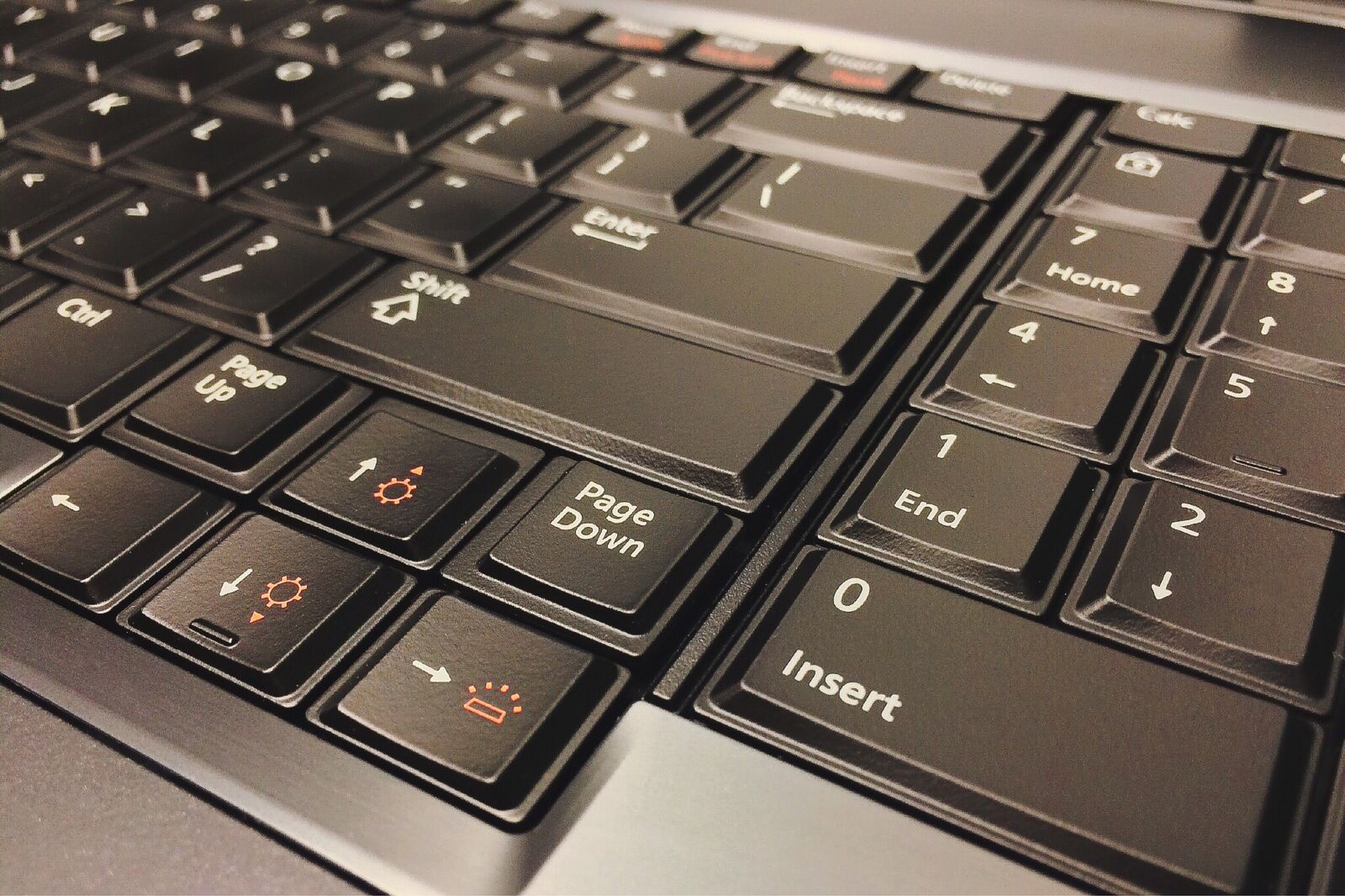
The ß isn’t an umlaut, but every umlaut-typing guide gets asked about it, so here’s the complete answer. It represents a sharp “ss” sound and appears in words like Straße (street), groß (big), Fuß (foot) and Spaß (fun).
- Windows: Alt+0223, or Right-Alt + s on the US International layout, or its own key on the German layout.
- Mac: Option + s, always.
- iPhone/iPad: long-press s.
- Android: long-press s on Gboard.
- Fallback: ß → SS, always. Straße → Strasse.
One modern note: German spelling reform introduced the capital ẞ in 2017, so ALL-CAPS “STRASSE” can now officially be “STRAẞE.” You’ll rarely need it, but it’s the correct answer if a form demands capitals and you want to be precise. Typing ẞ: on Windows Alt+0783, on Mac it requires the German layout or character viewer.

Chromebook, Linux, and Other Setups
Chromebook: Settings → Advanced → Languages and inputs → Add German under Input method. Switch with Ctrl + Space. Alternatively, the US International behavior works if you enable it — the dead-key quote trick (” then a = ä) applies on ChromeOS too.
Linux: Most distributions let you set a Compose key (often Right Alt or Caps Lock) in keyboard settings. Then Compose followed by ” then a produces ä; Compose, “, o gives ö; Compose, “, u gives ü; Compose, s, s gives ß. The German layout (de) is also one click away in every major desktop environment. Linux users who live in the terminal should know the Unicode codes too: ä is U+00E4, ö is U+00F6, ü is U+00FC — type Ctrl+Shift+u, then the code, then Enter in GNOME.
Smart TVs and game consoles: These are the last resort cases — on-screen keyboards vary wildly. Long-press sometimes works; otherwise, use the AE/OE/UE fallback without shame. Nobody judges fallback spelling in a PlayStation chat message.
Quick-Reference Cheat Sheet: Every Method at a Glance
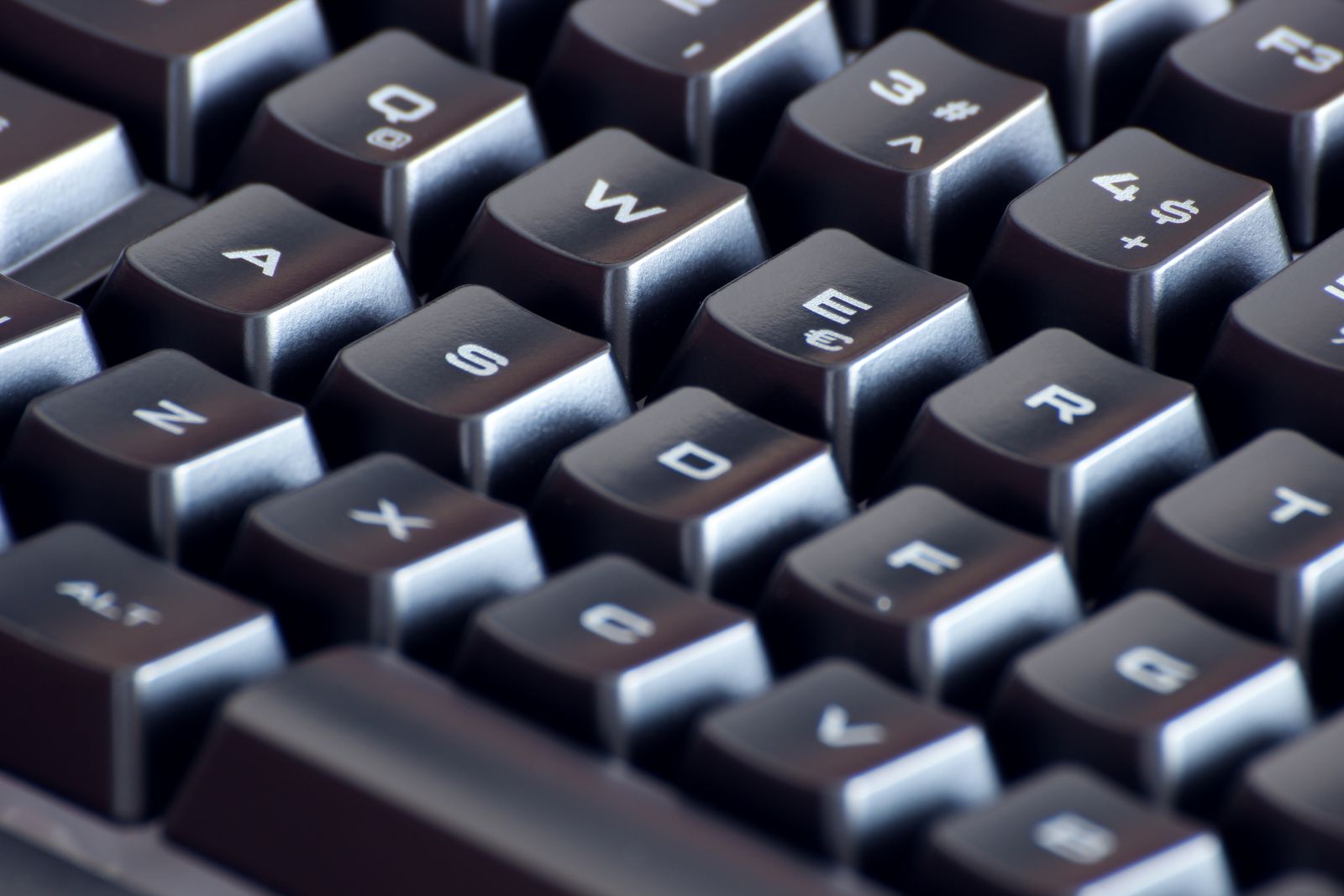
When you just need the answer fast, find your device below. This table condenses every method from this guide into one place — bookmark this section.
| Device | Method | How it works | Best for |
|---|---|---|---|
| Windows | US International layout | Type " then the vowel (" + a = ä) |
Daily German typing |
| Windows | German keyboard layout | Dedicated ä, ö, ü, ß keys (Y/Z swapped) | Long German texts |
| Windows | Alt codes | Alt+0228 ä, Alt+0246 ö, Alt+0252 ü, Alt+0223 ß | Occasional umlauts on desktops |
| Windows | Win + . symbol picker |
Browse symbols, click the letter | One-off emergencies |
| Mac | Option+u shortcut | Option+u, then vowel (Option+u, a = ä) |
Everyone on Mac |
| Mac | Press-and-hold menu | Hold a, pick ä from the popup |
Beginners |
| Mac | German input source | Dedicated keys via Control+Space switching | Long German texts |
| iPhone/iPad | Long-press | Hold a/o/u/s, slide to ä/ö/ü/ß |
Occasional use |
| iPhone/iPad | German keyboard | Dedicated keys + German autocorrect | Regular messaging |
| Android | Long-press on Gboard | Hold the base vowel, pick the umlaut | Occasional use |
| Android | German Gboard language | Dedicated keys + predictions | Regular messaging |
| Linux | Compose key | Compose, ", then vowel |
Terminal-heavy users |
| Chromebook | German input method | Ctrl+Space to switch layouts | ChromeOS users |
| Anywhere | AE/OE/UE fallback | ä→ae, ö→oe, ü→ue, ß→ss | Swiss text, URLs, forms |
Two program-specific tricks worth knowing. In Microsoft Word, the built-in autocorrect already converts common sequences, and you can add your own: File → Options → Proofing → AutoCorrect Options, then map e.g. :a: to ä for a personal shorthand that works in every Office app. In Google Docs, Insert → Special characters → search “latin small letter a with diaeresis” gives you ä with a visual picker — slower than a keyboard method, but it works on any computer where you’re signed in, including borrowed machines where you can’t change system settings.
The pattern across all of these: the methods that feel like magic on day one (long-press, Option+u, dead keys) become invisible by day seven. Pick one primary method for each device you own, use it deliberately for a week, and you’ll stop thinking about umlaut typing entirely — which is exactly the point. The mechanics should disappear so the language itself can take center stage.
Troubleshooting: When Umlauts Won’t Type
The quote key does nothing special on US International. You need to type the quote then the vowel as two separate keystrokes: ” followed by a. If you get “a instead of ä, your layout didn’t actually switch — check the language bar (Win + Space toggles) and confirm you’re on United States-International, not plain US.
I get ‘a instead of ä. Same cause: the layout isn’t active in this application. Some apps (especially games and remote desktops) grab the keyboard at a lower level. Switch the layout before launching the app, or use Alt codes as a workaround.
Autocorrect keeps “fixing” my umlauts. If your phone turns “schön” into “schon,” your keyboard language is English-only — it doesn’t recognize the umlaut word and “corrects” it. Add the German keyboard (sections above); German autocorrect knows these words and will suggest them instead of fighting them.
The umlaut appears in some apps but not others. This is almost always a font issue in older software: the app’s font lacks the ä/ö/ü glyphs. Switch the font (any modern system font has them) or update the app. In 2026 this is rare, but it still surfaces in legacy enterprise software.
Copy-paste as emergency method. Keep it honest: if nothing else works right now, copy ä ö ü Ä Ö Ü ß from anywhere — this page, a search result — and paste. It’s inelegant, but a correct umlaut pasted beats a wrong vowel typed. Bookmark a page with the characters for emergencies.
Frequently Asked Questions
Is it ever acceptable to just write “a” instead of “ä”?
No — not in standard German. Dropping the dots changes words (schon vs schön) and reads as a spelling error. The only correct substitutes are the AE/OE/UE digraphs, and only in contexts where umlauts genuinely can’t be used.
Why doesn’t Switzerland use umlauts?
Swiss German orthography standardized on ae/oe/ue, and Swiss keyboards reflect that — there are no umlaut keys. It’s not a limitation; it’s the local standard, and Swiss readers parse “gruezi” as naturally as Germans parse “grüß.”
Do I need umlauts for German exams like the Goethe-Zertifikat?
Yes. Written exams expect correct umlaut spelling, and in the digital exam formats the input methods support them. Practice with your chosen typing method before the exam so the mechanics are automatic under time pressure.
What’s the fastest method overall?
For desktop: a proper layout (US International on Windows, Option+u on Mac, or the full German layout anywhere). For mobile: adding the German keyboard. In both cases the one-time setup pays for itself within days.
Can I type umlauts in a URL or email address?
Technically, internationalized domain names support them (müller.de exists as xn--mller-kva.de under the hood), but the digraph form (mueller.de) remains the safer, more conventional choice for anything functional. Use umlauts for display text, digraphs for addresses.
Key Takeaways: How to Type German Umlauts
Learning how to type German umlauts is a one-time setup problem with a permanent payoff. On Windows, the US International layout (quote-then-vowel: ” + a = ä) is the best balance for most learners; on Mac, Option+u followed by the vowel works everywhere with zero configuration; on iPhone and Android, long-pressing the base vowel handles occasional use while adding the German keyboard gives you dedicated ä/ö/ü/ß keys and German autocorrect for daily use. The ß follows the same methods (Option+s on Mac, long-press s on mobile, Alt+0223 on Windows).
When the dots aren’t available, the official fallback is AE, OE, UE (and SS for ß) — correct in Switzerland, URLs, crosswords and legacy systems, but a spelling error in normal German text. Set up your primary method today, practice it for a week, and typing German becomes as thoughtless as typing English.
Now that you can write them, put the letters to work: build vocabulary with our German words with Ä, Ö and Ü lists, study when umlauts change meaning to understand what you’re typing, or sharpen your ear with the Ö vs O and Ü vs U pairs. And if you play word games, knowing these input methods makes our German Wordle umlaut words immediately more useful.